
Support
Help with BiteIt
Email us: hello@biteit.pro
Write from the email address on your account and say which phone you use, so we can sort it out in one reply.
Bought on the website: from paying to signing in
Premium bought on biteit.pro goes to the account for the email you entered. There is nothing to buy again in the app; just sign in with that email.
-
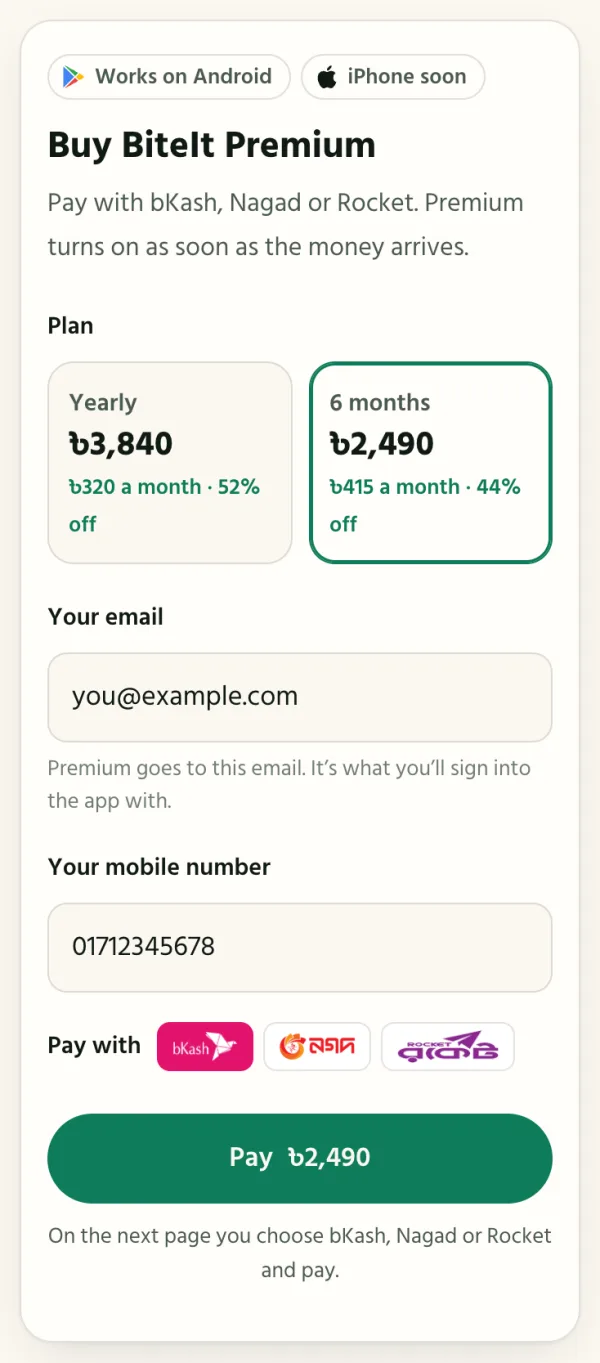
1. Pick a plan, enter your email and mobile number
On biteit.pro, tap Buy under a price. Type the email you will sign into the app with and check the spelling. Premium goes to this email. Add your mobile number too, then tap Pay.
-
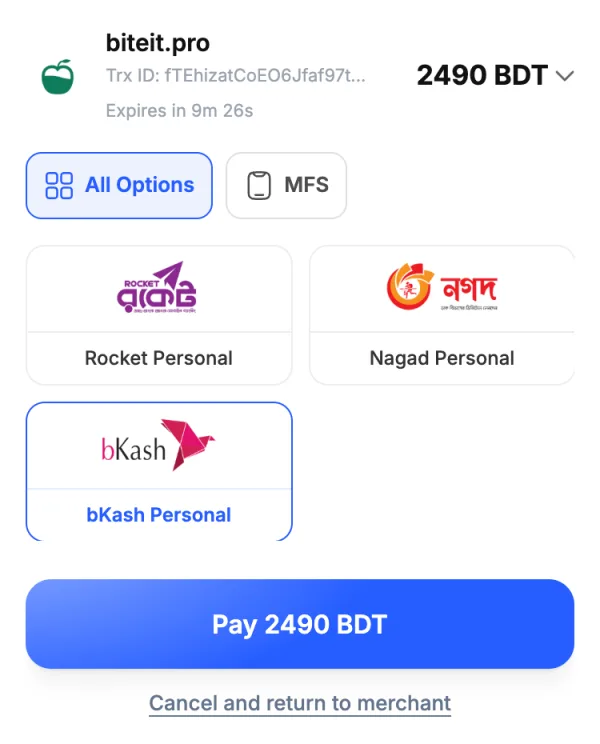
2. Choose bKash, Nagad or Rocket
Our payment page opens next, at biteit.paymently.io. Choose your wallet and tap the pay button. The page stays open for 20 minutes, so keep your wallet phone handy.
-
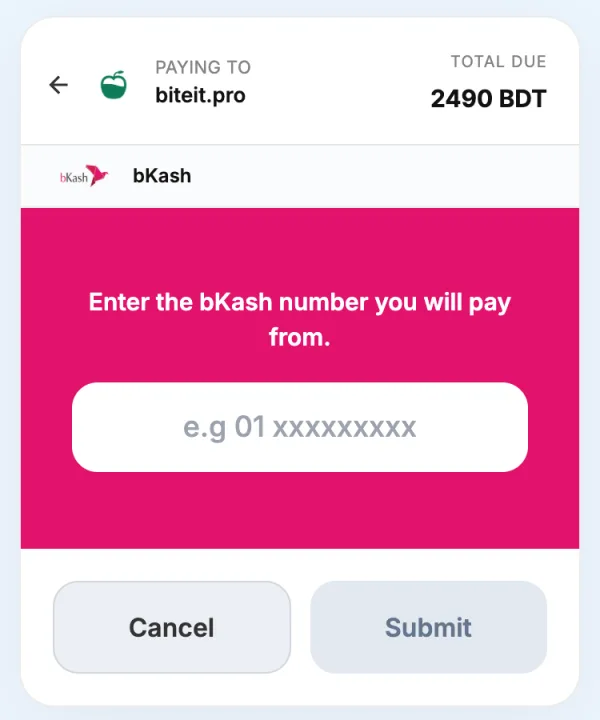
3. Send the money
Enter the number you will pay from and tap Submit. Then send the money the way the page tells you. Which number and how much are both shown there. When the payment is done you come back to BiteIt's page.
-
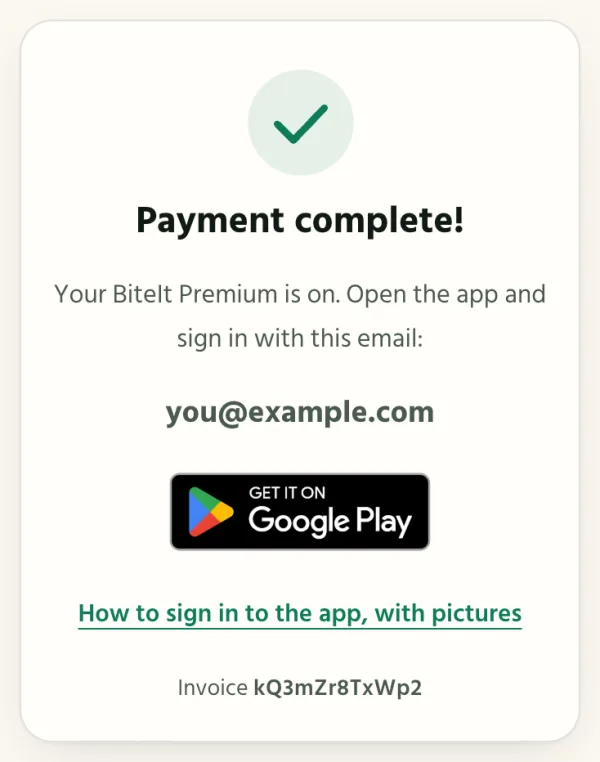
4. See “Payment complete!”
That means premium is on. The email shown there is the one to sign into the app with.
If it says “Matching your payment”, give it a moment. Premium turns on by itself as soon as it matches, even if you close the page. If it takes long, use Send us your TrxID on that page. It reaches us on WhatsApp.
-
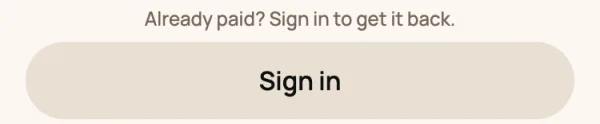
5. Open the app and tap “Sign in”
Install BiteIt from Google Play, open it and answer the setup questions. When you reach the subscription screen, tap Sign in at the bottom.
Don't tap “Start free trial”. That starts a separate subscription on Google Play.
-
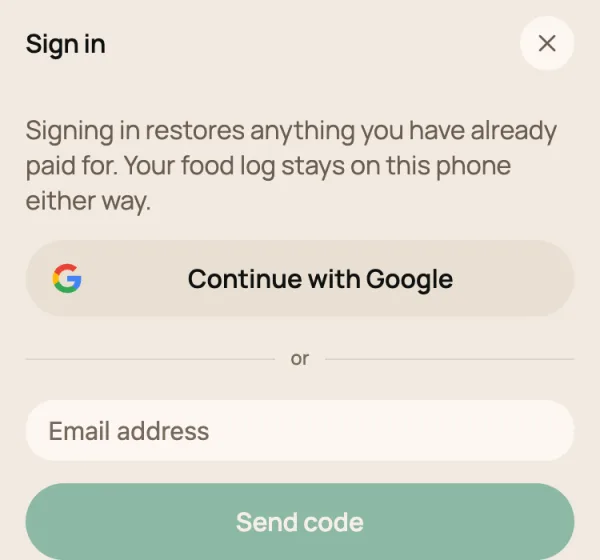
6. Sign in with the email you bought with
If that email is the Google account on your phone, tap Continue with Google and pick exactly that account.
Otherwise type the email, tap Send code, enter the 6-digit code from your inbox and tap Verify. That's it, premium is on. Signing in the same way on a new phone brings it back.
Subscriptions and sign-in
I paid, but the app still shows the paywall.
Your subscription is attached to the account you signed in with, not to the phone. On the paywall, tap Sign in and use the same email address you used when you bought it.
If you bought it while signed in with Google, sign in with Google again and pick that same Google account. A phone with several accounts on it will sometimes offer a different one.
If you bought on biteit.pro, use the email you typed there. The step-by-step guide with pictures is above.
The sign-in code never arrives.
Check the spam or promotions folder first. The code comes from an address you have not written to before, which is exactly what spam filters look for.
Make sure you typed the address you actually bought with. One wrong letter and the code goes to a different address.
Sign-in says there is no account with my email.
That message means exactly what it says: no subscription has ever been bought with that address. Signing in restores a purchase, it does not create a new account.
If you are sure you paid, you probably used a different address. Check the receipt Google Play emailed you: the address it was sent to is the one to sign in with.
If you bought on the website, use the email shown on the “Payment complete” page. While a payment is still being matched, the account does not exist yet. Try again a little later.
I got a new phone.
Install BiteIt, tap Sign in on the paywall, and use the same email. Your subscription comes back immediately.
Your food diary does not transfer. It is stored on the old phone and nowhere else. That is the trade for never uploading it. The new phone starts with an empty diary.
How do I cancel?
In the Play Store: your profile picture → Payments and subscriptions → Subscriptions → BiteIt → Cancel.
We cannot cancel it for you. Google took the payment, so only Google can stop it. Cancelling leaves your access running until the period you already paid for ends.
Premium bought on the website does not renew, so there is nothing to cancel there.
I want a refund.
Refunds for a purchase made on Android go through Google Play, under Google's refund policy. Request it from the same Subscriptions screen, or from play.google.com → Order history.
If Google declines and you think the charge was a genuine mistake, write to us and we will look at it.
Refunds for a website purchase are below, under Bought on the website.
Bought on the website
I sent the money, but the page says “Matching your payment”.
That's normal. The payment matches once your money is confirmed, usually within a few minutes. Premium then turns on by itself, even if you closed the page. Sign into the app after that.
If it's taking long, tap “Taking a while? Send us your TrxID” on that page. Enter the TrxID and the number you sent from, and it writes a WhatsApp message with everything in it, so just send it. We'll match it by hand and turn premium on.
The payment page says time ran out.
The payment page stays open for 20 minutes. If you had not sent the money, start again from biteit.pro.
If you had already sent it, don't send it again. Send us the TrxID and the number you sent from on WhatsApp or by email, and we will match it and turn premium on.
I typed the wrong email.
Send us the right email, the one you typed by mistake, and the TrxID on WhatsApp or by email. We will check it and move premium to the right account.
Will it charge me again every month or year?
No. A website purchase is a one-time payment for 6 months or a year. Nothing is charged when it ends; buy again if you want to keep going.
Buying again before it ends adds the new period to the time you have left, so not a day is lost.
I already have a Google Play subscription.
Buying on the website does not stop a Google Play subscription. So that you are not charged twice, cancel it in the Play Store: your profile picture → Payments and subscriptions → Subscriptions → BiteIt → Cancel.
I want a refund for a website purchase.
A purchase is not refunded once premium is on. But if you paid twice, paid and premium never turned on, or were charged a different amount from the price shown, send us the TrxID and the number you paid from on WhatsApp or by email. The money goes back to that number within 7 days of your request.
The full rule is in the Terms of Use.
Using the app
The scan got my meal wrong.
It will sometimes. Reading calories off a photograph is an estimate, and portion size is the hardest part of it. The same plate of rice varies by a third from one house to the next.
Tap the entry to open it and correct the portion or the food. A clear, well-lit photo taken from above, with the whole plate in frame, is read noticeably better than a close-up at an angle.
Does it work without internet?
Logging, editing, targets, weight and everything already in your diary work offline, because all of it is on the phone.
Scanning a photo needs a connection, since the analysis happens on a server.
Can I use it in English?
Yes. Settings → Language switches the whole app between Bangla and English, including the numerals, at any time.
Is my food diary uploaded anywhere?
No. Meals, photos, weights and your profile stay on the device. The only thing that leaves is a photo you choose to scan, which is analysed and then discarded.
The Privacy Policy sets out every exception in detail.
How do I delete my account?
The account deletion page explains how to request it, what gets deleted, and why you should cancel the subscription first.
Still stuck?
Email hello@biteit.pro with what happened and what you expected instead. A screenshot helps more than anything else.